
If you are signed into an Amazon Chime account and the attendee you wish to unmute has joined by dialing in or from an in-room video system, yes, you may use the Roster and choose the Unmute action.
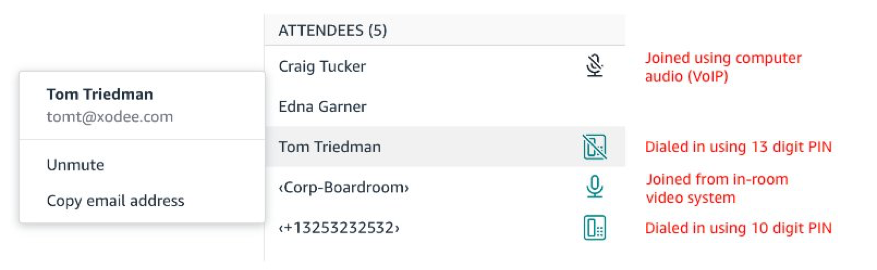
Chime provides the ability for any user that can mute another attendee to click on an attendee name in the meeting roster and choose the “Unmute” option which is available if the attendee joined by dialing in or from an in-room video system. When an attendee is unmuted in this way, an audio cue is played, “Unmuted by another attendee. To mute, press star seven.” and overlay text is also presented for in-room video system attendees. Attendees joined from a phone, in-room video system or other SIP or H.323 devices continue to be able to override Chime mute controls using the functions provided by their device; for instance, the button on the mic that lights up red to indicate that the device is muted, will take precedence over the Chime unmute request.
If you are dialing into a meeting or joining from an in-room video system, please be sure to use the hardware mute functions to mute your devices to prevent another attendee from unmuting you using this new Chime feature.
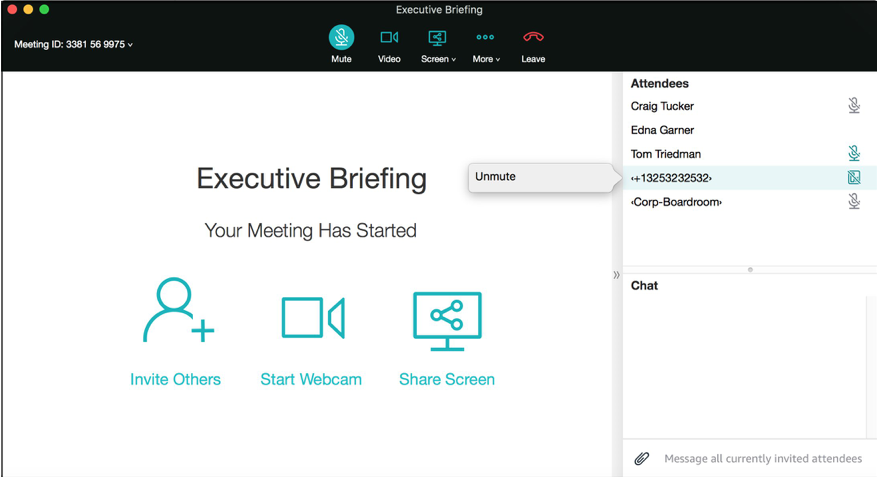
Note: The option to unmute another attendee is not available when the selected attendee has joined using the audio from their computer or the Chime client, also referred to as VoIP audio. VoIP attendees must choose to unmute themselves.
Chime provides the ability for any user that can mute another attendee to click on an attendee name in the meeting roster and choose the “Unmute” option which is available if the attendee joined by dialing in or from an in-room video system. When an attendee is unmuted in this way, an audio cue is played, “Unmuted by another attendee. To mute, press star seven.” and overlay text is also presented for in-room video system attendees. Attendees joined from a phone, in-room video system or other SIP or H.323 devices continue to be able to override Chime mute controls using the functions provided by their device; for instance, the button on the mic that lights up red to indicate that the device is muted, will take precedence over the Chime unmute request.
If you are dialing into a meeting or joining from an in-room video system, please be sure to use the hardware mute functions to mute your devices to prevent another attendee from unmuting you using this new Chime feature.
Note: The option to unmute another attendee is not available when the selected attendee has joined using the audio from their computer or the Chime client, also referred to as VoIP audio. VoIP attendees must choose to unmute themselves.