
To change your account, you will need to sign out of the add-in, then sign back in with your new account.
Using the Amazon Chime Add-In for Outlook (O365)
- Open Outlook
- Navigate to your calendar and open a new appointment
- You should be a Schedule Chime Meeting item on the right portion of your ribbon

- Click the icon and the Amazon Chime scheduler will appear on the right side panel
Click Sign Out at the top of the panel

- Sign in with your new email address and account
Using the Amazon Chime Add-In for Outlook on Windows
- Open Outlook
- Navigate to your Calendar and there should be the Schedule Amazon Chime Meeting item in your ribbon
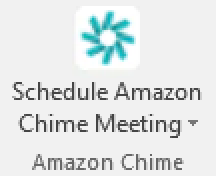
- Click the down arrow icon and a menu will be displayed
- Choose Sign Out
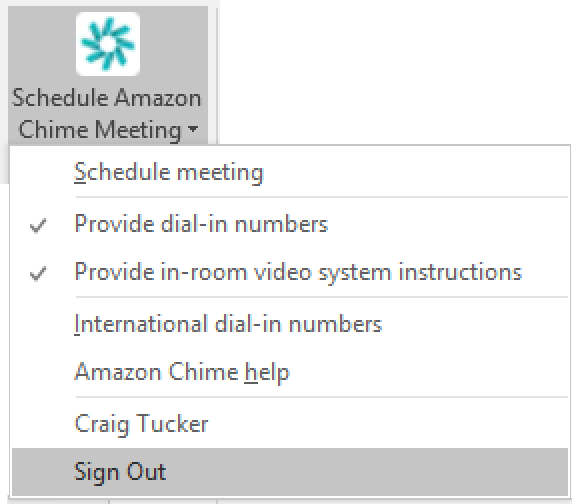
- Click the icon again and then choose Sign In from the menu
- Follow the prompts to enter your email address, then Login with Amazon, then email address and password
- Navigate back to Outlook and click on the Schedule Amazon Chime Meeting icon in the calendar ribbon and verify your name is as expected