
By default, and when not using Event Mode, Amazon Chime allows any attendee running the Windows, macOS, or web app to share their screen...even if another user is already sharing! No passing presenter rights required (we believe meeting attendees understand online meeting etiquette).
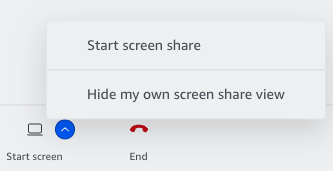
To share your screen or an application window, choose Start screen and then Start screen share from the lower control bar.
If someone is already sharing and you want to take over from them, choose Start screen and then Take over screen share from the lower control bar.
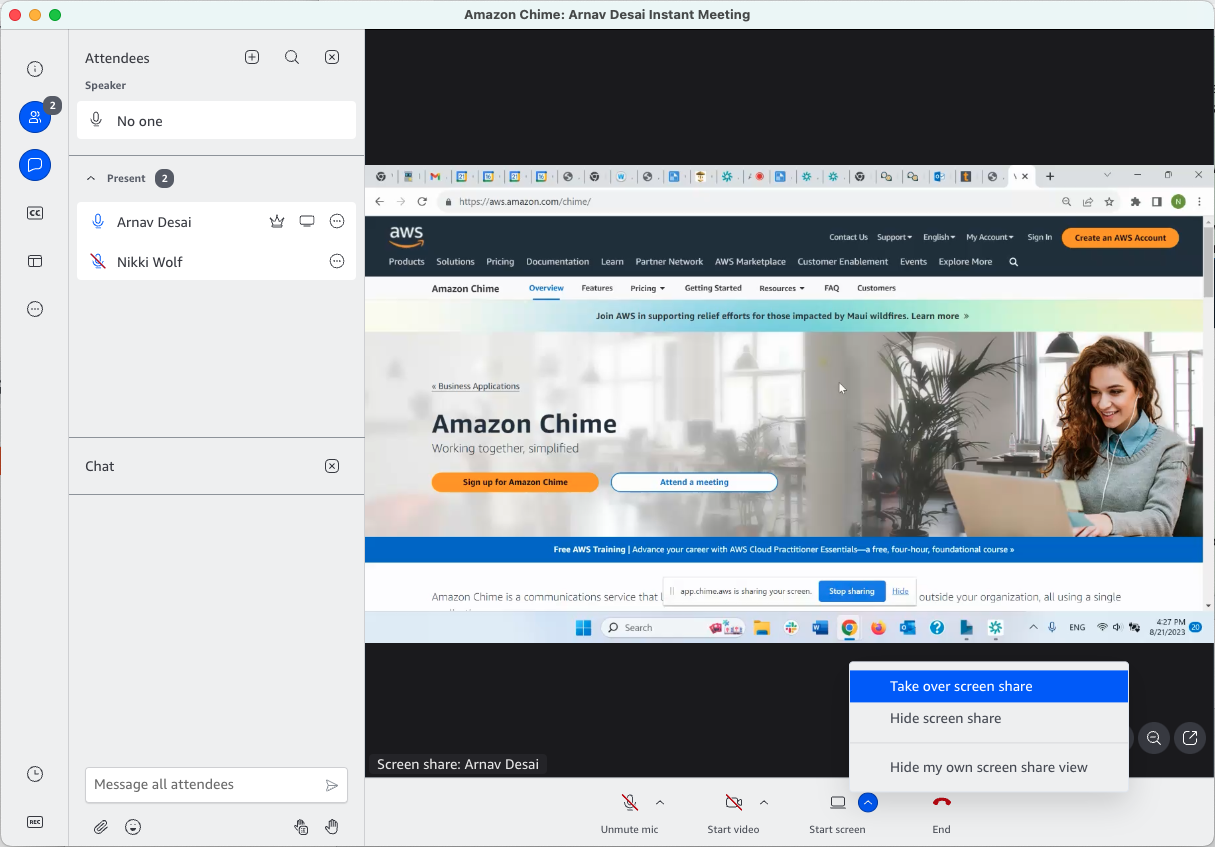
When someone else is sharing, Amazon Chime will also prompt you to confirm you want to stop the other attendees sharing and take over.

Choose Take over to share your screen or window.
When the host or their delegates has enabled Event Mode, only presenters attendees may share their screen and turn on their web cameras. During Event Mode, hosts and their delegates may enable other attendees to share their screen by adding them as Presenters (Choose Add Presenters from the More (three dot) menu). See https://answers.chime.aws/articles/208/using-amazon-chime-event-mode-to-take-control-of-y.html for more information about using Event Mode.