
We are constantly working to improve audio and video quality in Amazon Chime meetings. As a result, we will ask you to provide feedback on your meeting experience at the end of your Amazon Chime meetings.
The feedback request is presented on the main Amazon Chime window and will dismiss after 30 seconds. On web, the prompt is displayed in a browser tab.
Select Thumbs up if the quality was good and the dialog will close.
Select Thumbs down or Comment if you had a bad experience or want to provide feedback and you will be presented with a dialog to share your feedback.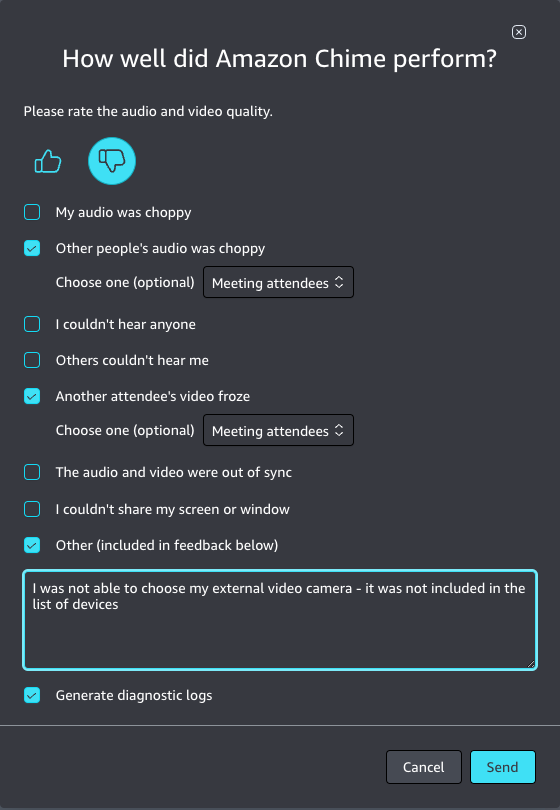
- Check the box(es) that best describes your challenge and share your experience in the Other comment box
- Make sure Generate diagnostic logs is checked if you would like to report a problem to your IT administrator and make a note of the meeting ID
Note: Diagnostic logs contain information about your device and connection to our network which may be used to troubleshoot issues and/or to improve our service. They do not include personal data. Please consult the AWS privacy notice for how we protect your data.
- Return to the Main Amazon Chime window
- Click your name in the upper left and choose Settings from the menu
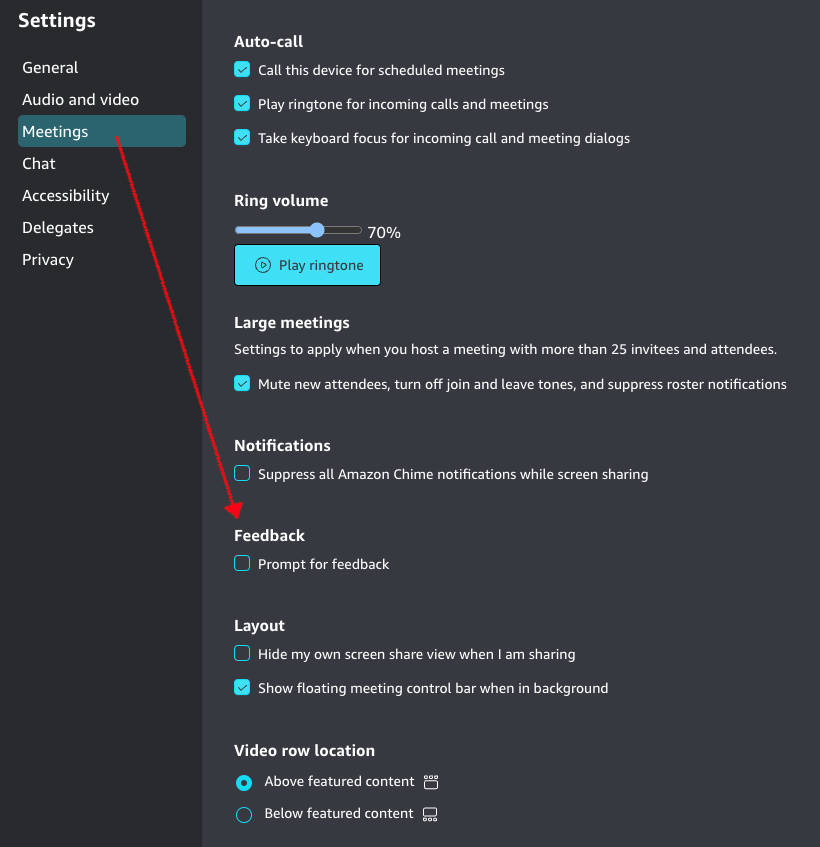
- Select Meetings
- Under the Feedback section, un-check the Prompt for feedback option
- Close the Settings by clicking the X in the upper right
Note: The Amazon Chime team does not respond to each meeting feedback response. We use the aggregated information of thumbs and category selected to gain a better understanding of how our service is working.