
Users with Amazon Chime accounts can control how they are notified on each of their devices when automatically called for scheduled meetings or when added to instant meetings or adhoc calls.
NOTE: If you don't want to receive calls or notifications for a period of time, you can set your status to Do Not Disturb.
There are two settings that can be used:
-
Call this device for scheduled meetings: this controls whether or not the join screen is presented when a scheduled meeting starts. This will not suppress join screens and notifications for adhoc calls or instant meetings.
The image below is the join screen that is displayed on the Amazon Chime for Windows client when a scheduled meeting starts.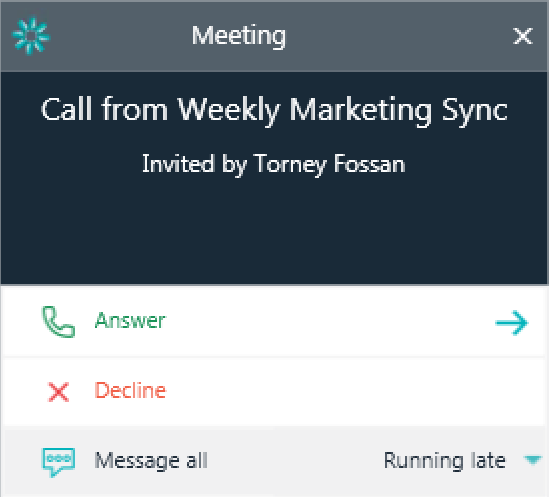
Note: Disabling calls for scheduled meetings on a device will also suppress the ringtone and notification that a meeting is starting for scheduled meetings.
- Play ringtone for calls and meetings: this controls whether or not the device plays a ringtone for any joinable meetings - including scheduled and instant meetings or adhoc calls initiated from chat and chat room threads.
These settings are device specific, and for your convenience, will be remembered on the device even after quitting the application.
By default, the join screen for scheduled meetings and ringtones are active on all devices.
The Auto call controls can be found in the locations described below:
- Windows: Navigate to File > Settings > Meetings
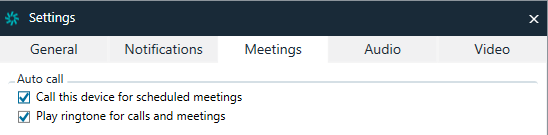
- macOS: Choose Amazon Chime > Preferences > Meetings
- iOS: Open the Settings tab and locate the settings under Meetings
- Android: Open the Settings tab and locate the settings under Meetings