
Yes, for supported devices, Amazon Chime provides a background blur feature that uses machine learning to blur the background of your video during meetings. Users may also choose the strength of the blur - low, medium, high, and no blur.
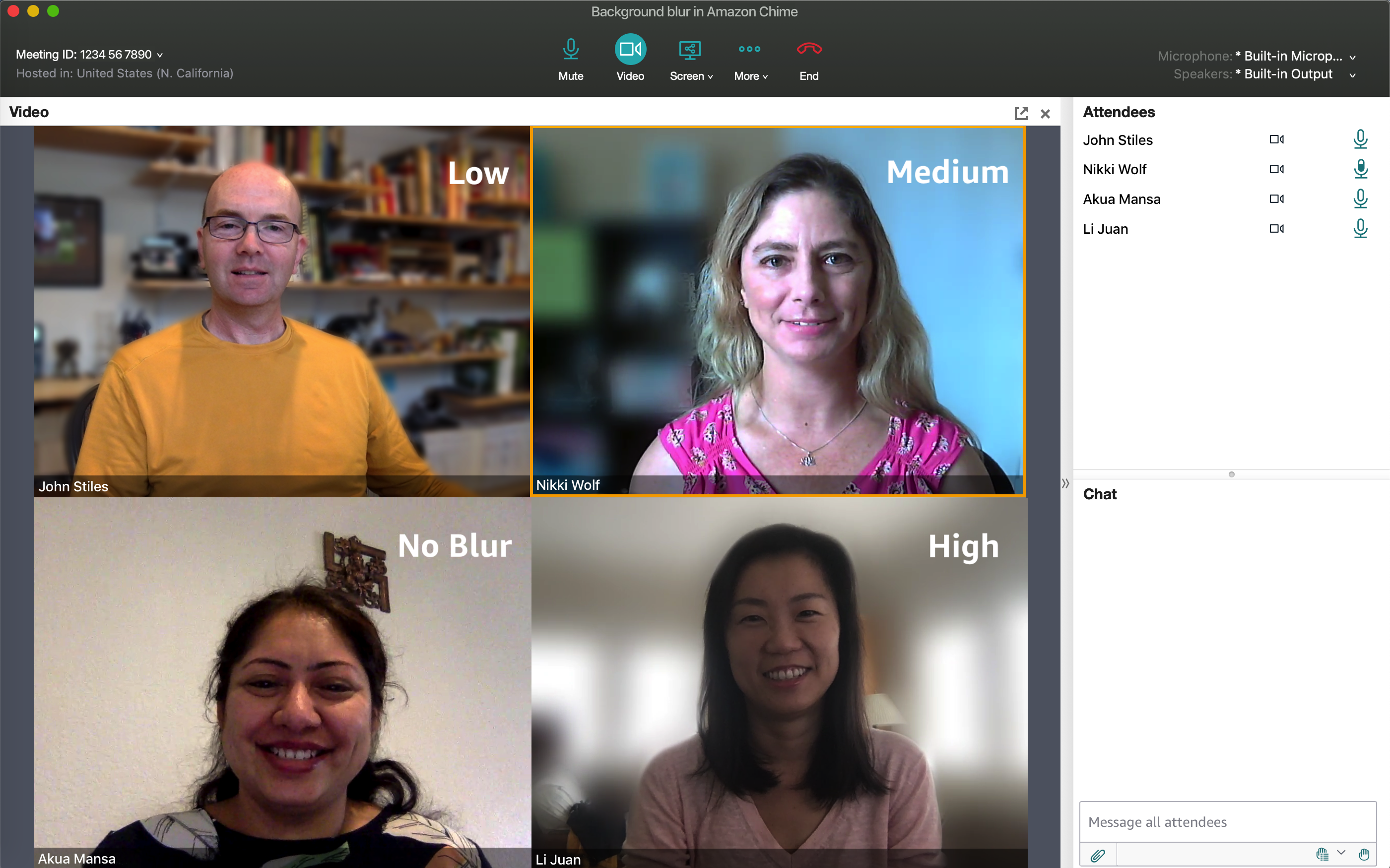
Supported devices: Background Blur currently is available on the desktop clients running Windows 10 or macOS 10.14 (Mojave) or later. The feature uses your graphics processing unit (GPU) for best performance, and older GPUs may not have the power to run it. If you try to use background blur on a computer with an unsupported operating system or an older GPU, the Amazon Chime client displays a message indicating it is not supported, and the feature won’t start. If you have an older computer and your video starts to lag, we recommend turning off background blur.
Enabling Background Blur
By default, Video background blur is turned off and can be turned on and off at any time during the meeting by toggling the Blur My Video Background option on the More menu. The preference is persistent between meetings - once turned on, all meetings will use video background blur until it is turned off.
Note: Amazon Chime client settings, including the Blur my background value, are reset to the default value when a user signs out of the client.

Set the Blur Strength
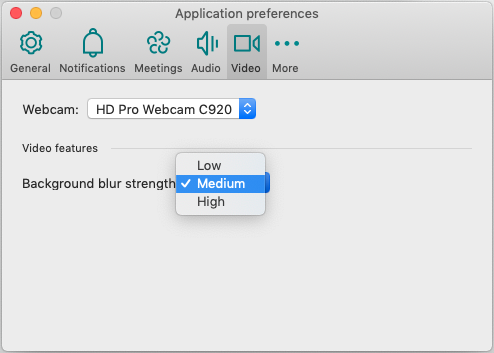
You can choose the degree to which the blur is applied at any time during your meeting - choosing between a Low amount of blur, Medium amount, or a High amount of blur. Once selected, the preference is persistent between meetings.
- Windows: Choose Settings under the File menu and navigate to the Video tab. There you can choose the Background blur strength.
- macOS: Choose Preferences under the Amazon Chime menu and navigate to the Video tab. There you can choose the Background blur strength.
For the best experience
Background Blur needs contrast to distinguish between you and your background. Follow these best practices whenever possible:
- Wear clothes that stand out from what's behind you.
- If your video looks grainy, turn on some lights. Most web cams don't perform well in low light, especially the cameras in laptops.
- Try to sit within three feet (a meter) from the camera. Try to sit directly in front of, and look squarely into, the camera.
- The current model doesn't recognize hats, so it blurs them.
Feature feedback
If you have any feedback on this feature, be sure to leave a comment in the meeting feedback form presented when you leave the meeting or work with your AWS IT Administrator to file a ticket with AWS support.