
Note: This article is for the Amazon Chime Add-In for Outlook on Windows. Amazon Chime also offers the Amazon Chime Add-In for Outlook, which works across platforms and supports Office 365. More information on choosing the right add-in for you can be found in our guide to Choosing the Right Outlook Add-In.
The Amazon Chime Add-in for Outlook on Windows is available for users that are running Outlook 2010 or higher on Windows.
Perform the steps below to install the Amazon Chime Add-in for Outlook on Windows.
- Exit Outlook.
- Launch the Amazon Chime Windows app and Choose Meetings > Schedule a Meeting.
- Click Next.
- Make sure Microsoft Outlook is listed as the calendar app. Select Microsoft Outlook if it is not already selected.
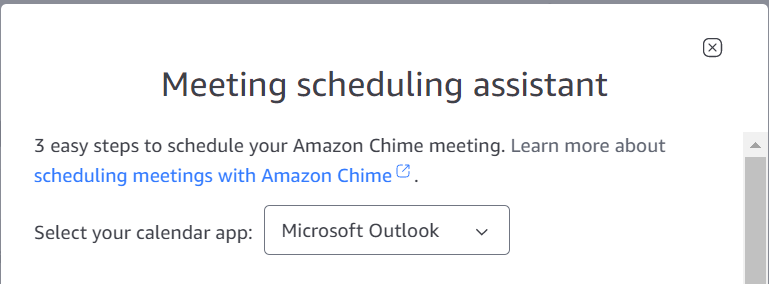
- Scroll to the bottom of the assistant and choose Get Outlook Add-in and then follow the installation instructions.
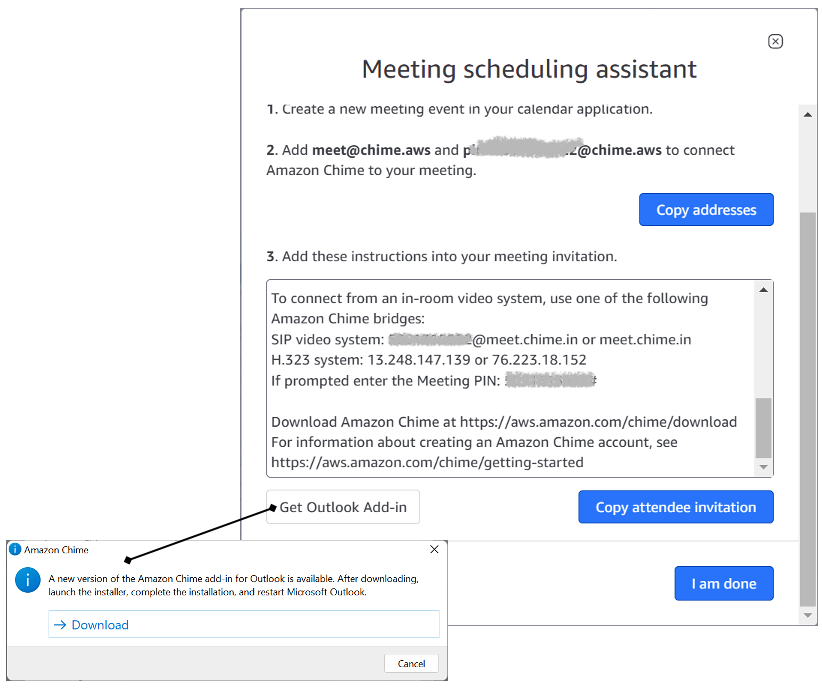
- Restart Outlook.
- Verify that the Amazon Chime for Outlook Add-In on Windows was installed by choosing Calendar and ensuring that Schedule Amazon Chime Meeting shows on the Outlook Calendar Ribbon.
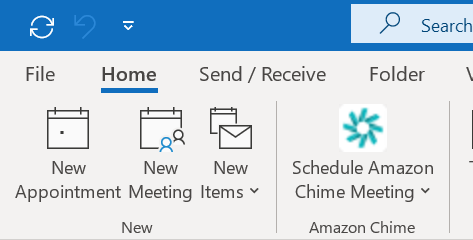
- Sign into the Amazon Chime for Outlook Add-In on Windows by choosing the Schedule Amazon Chime Meeting icon in the Calendar ribbon and selecting Sign In. You only do this one time, as your information is stored.
- Provide your Amazon Chime credentials.
- You are now ready to schedule meetings!