
While attending a meeting, there are several ways to change the audio device(s) being used when joining from an Amazon Chime Windows, macOS, or web application.
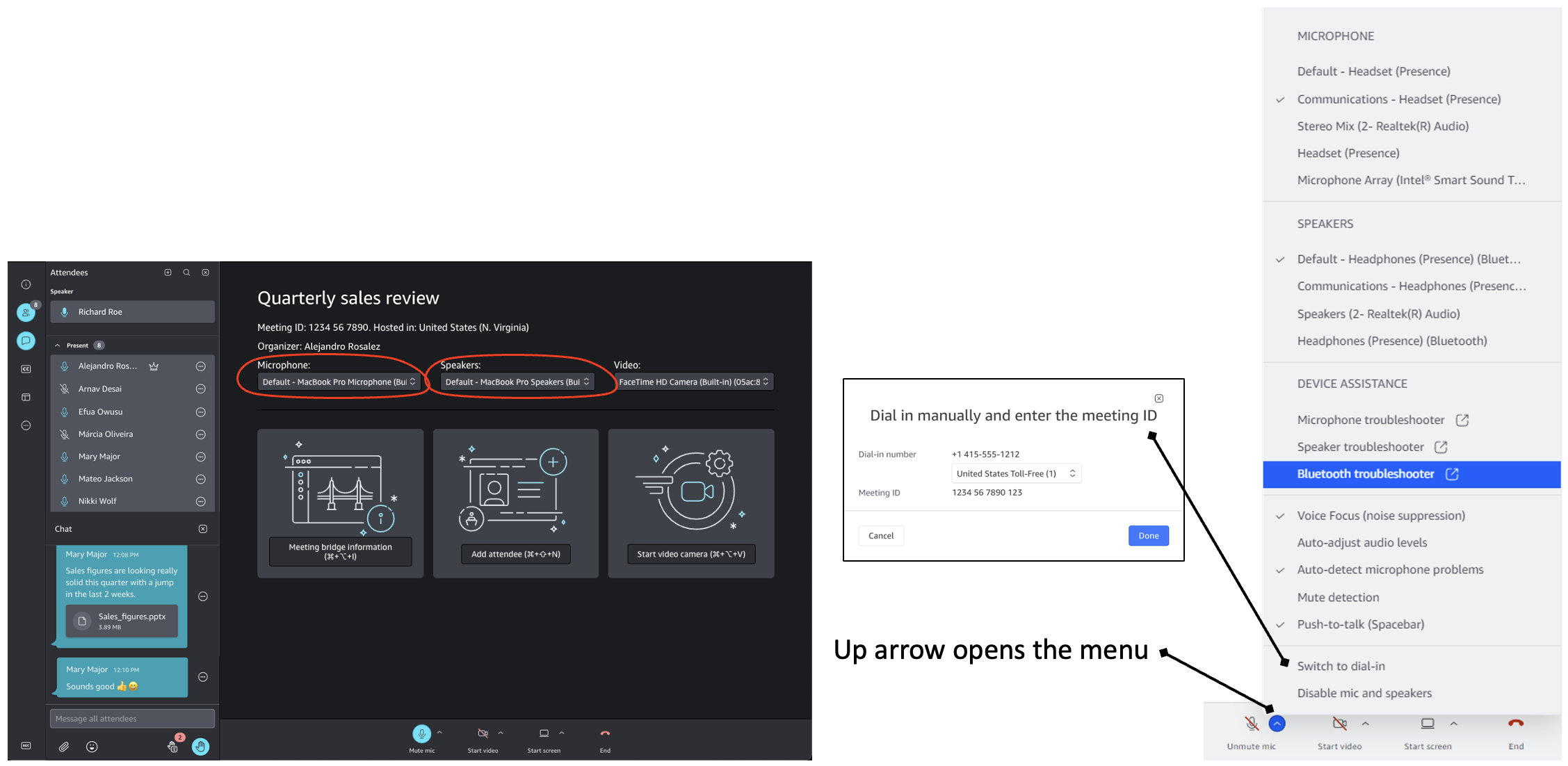
- Use the audio selection option found at the bottom of the meeting window. Click the up arrow and select the desired Microphone and Speaker. The current operating system default will have the word Default prepended to device name.
- When you are in a meeting, if there are no video tiles or screen share view in the main portion of the meeting window, the Microphone, Speakers, and Video camera options are displayed under the meeting name. Click on the option and choose from your available devices.
Notes:
- If you are having challenges with your computer audio, choose Switch to dial-in from the audio menu.
- When signed in and using the Amazon Chime Windows, macOS, or web clients, your device settings will be remembered from the previous meeting.
- When joining from a Firefox browser, the Speakers option is always set by the Operating System and can only be changed using the System settings. If you change the option while already in the meeting you may need to reload the page and re-join your meeting.