Using the Amazon Chime Add-In for Outlook
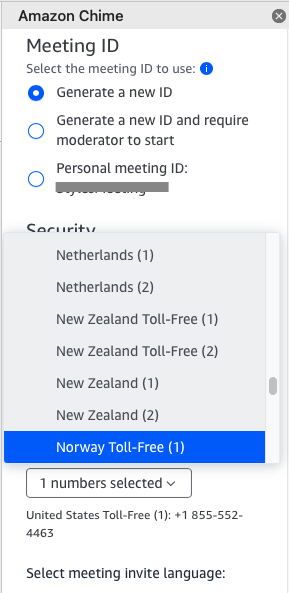
The Amazon Chime Add-In for Outlook provides a dropdown menu where you can select from any of our International dial-in options. After selecting your dial-in numbers and choosing Schedule, the body of your invitation will be populated with the details of your Amazon Chime meeting, including the dial-in numbers you selected.
Using the Amazon Chime Outlook Add-In for Windows
To add International dial-in numbers to your meetings using the Amazon Chime for Outlook Add-in on Windows:
- Access the Schedule Amazon Chime Meeting from the Outlook Calendar Ribbon (not an individual event or meeting window) and choose International Dial-in numbers.
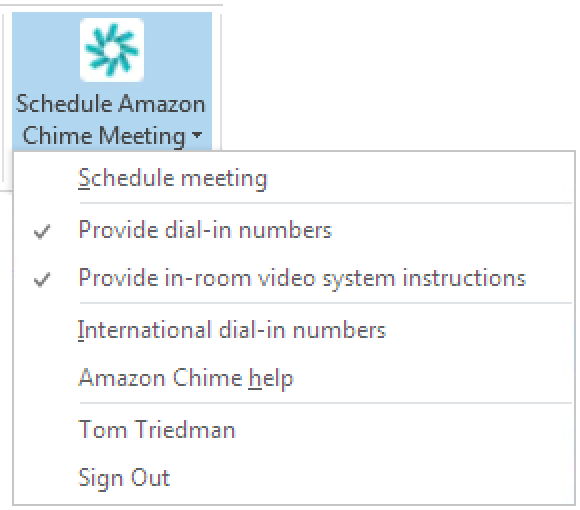
- Select the countries you want included.
- Choose Save.
- Schedule your meeting(s). The instructions will be populated with the dial in information for the countries selected.
These are remembered across all your scheduling - so to change, repeat the steps above.
From within the Amazon Chime Desktop App
To add International dial-in numbers from within the Amazon Chime Windows, macOS, or web app:
- Choose Meetings > Schedule a meeting from launch pad
- In the Dial-in audio section, check the Dial-in option
- Select the countries you want to include
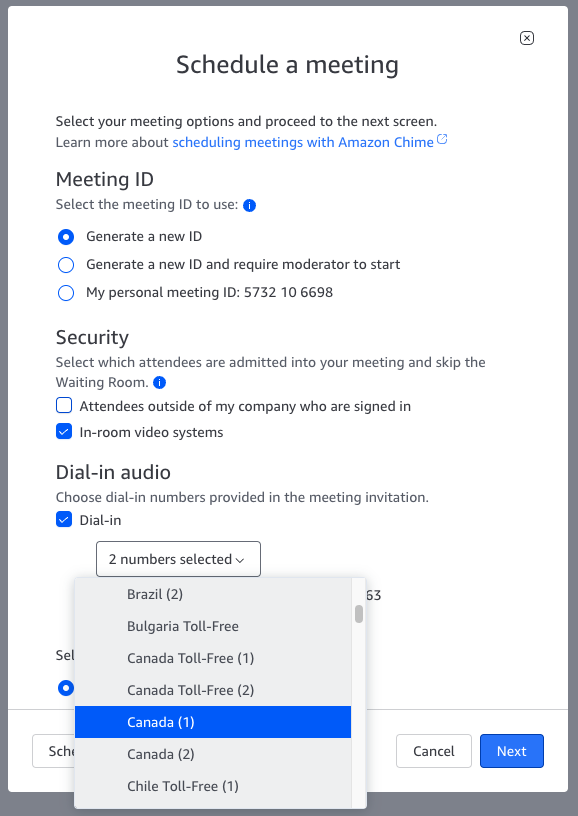
- Choose Next
- The numbers are added to the sample meeting instructions.
- Copy the instructions or select the numbers from the text box.
These are remembered across all your scheduling - so to change, repeat the steps above.
NOTE:
- You must have the Pro Trial or Pro permissions to access the International dial-in numbers.
- Please see https://aws.amazon.com/chime/dial-in-rates/ for the current list of countries and the dial-in rates.
- The Amazon Chime meeting attendee is responsible for any access or usage fees associated with their provider when dialing into a meeting.